Catch exactly what matters.
A region, a window, one monitor, or all of them. Clipboard first. Saved quietly. No preview pop-up.
Screenshot workflowsNative Windows capture v0.1.22
The screenshot is just the start. Capture, annotate, record, and explain — without breaking your flow.
See the real native appFree & open source. No account for core features.
Windows 10/11 · x64 + ARM64
 A shot worth sharing.PNG · Example
Good ideas.
Clearly captured.
Good ideas.
Clearly captured.
Good ideas.
Clearly captured.
Good ideas.
Clearly captured.
Good ideas.
Big impact.
Interactive illustration — not a live capture or a product screenshot.
Actual WinUI windows, captured with Hotshot's native pipeline. The library contains generated demo content only — no personal screenshots, clipboard, microphone, or account data.
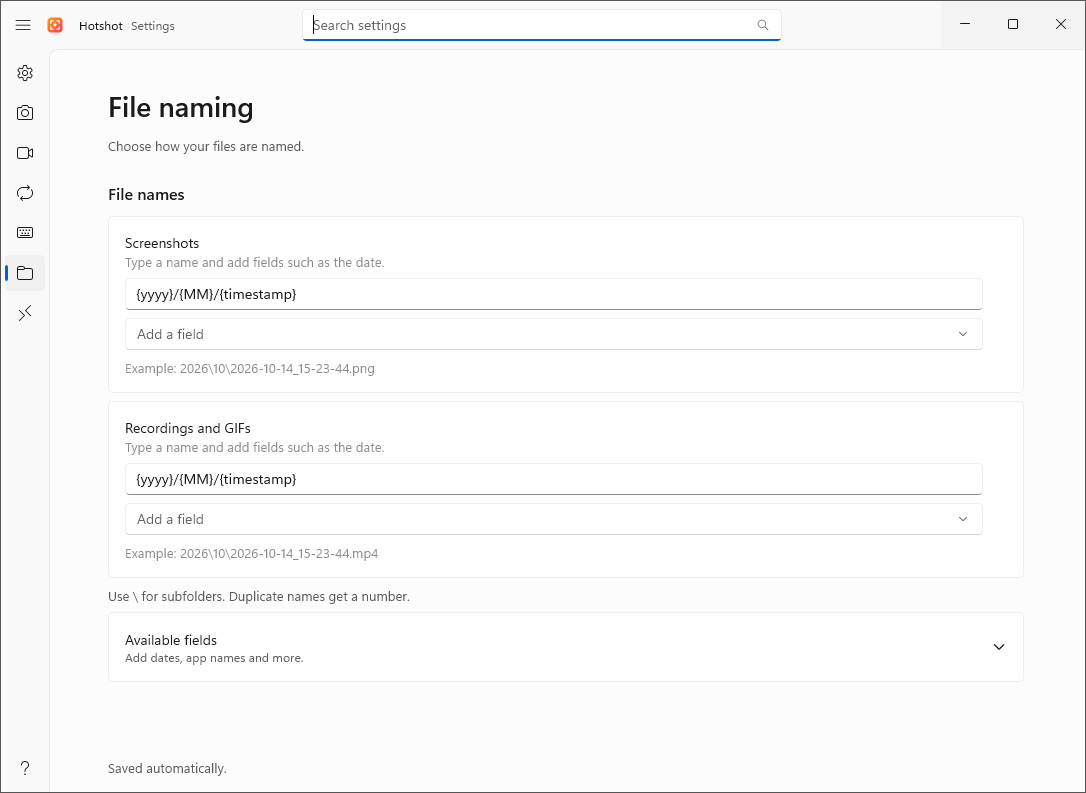
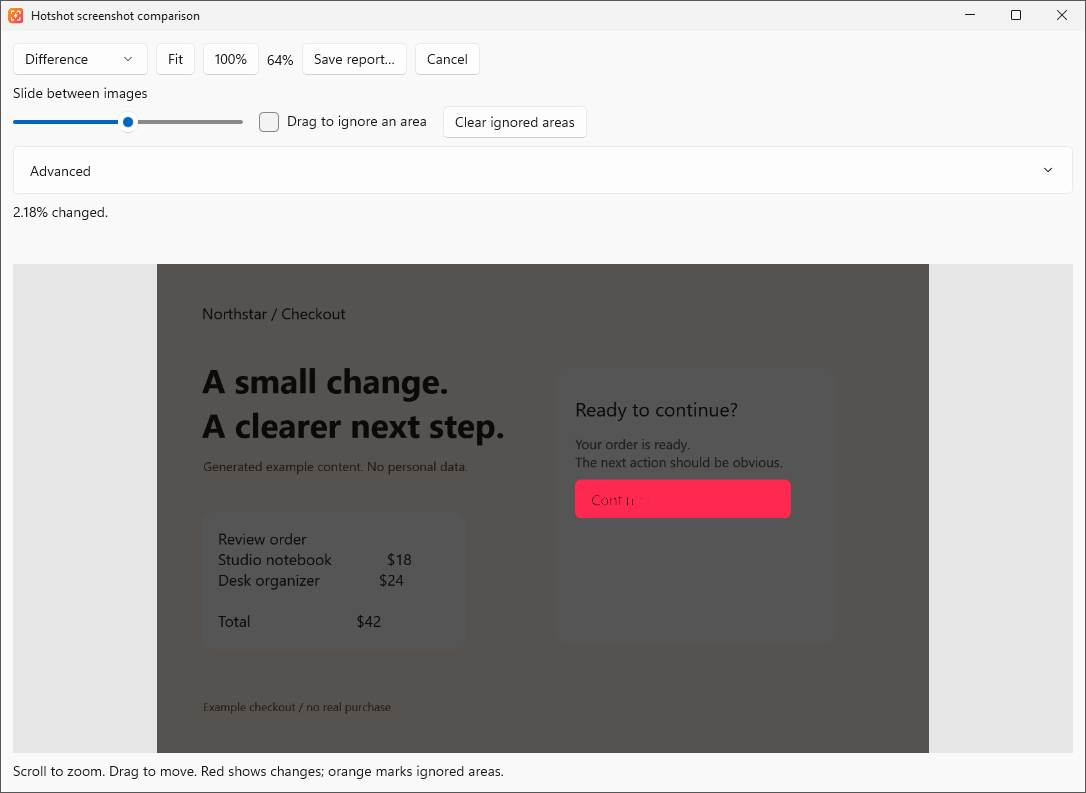
Native Windows capture of fixture-owned windows. What was tested, and what was not.
Built for the moment you need to show, not tell. A native WinUI workspace when you want it. Out of your way when you do not.
Explore the handbookA region, a window, one monitor, or all of them. Clipboard first. Saved quietly. No preview pop-up.
Screenshot workflowsArrows, text, numbered steps, opaque redaction, and a polished PNG/JPEG export. Keep an editable original.
Editing & redactionRecord MP4 with optional audio. Pause, trim, extract a frame, or turn it into a GIF.
Recording & GIFsFull-resolution comparisons, swipe views, tolerance, ignored regions, and project baselines.
Library & comparisonThere is no window to dismiss after every capture. Just a screenshot where you need it.
Press Print Screen. Drag a region or click a window. Escape cancels; Space picks the monitor.
Paste with Ctrl V. By default, the PNG is also saved under Hotshot in your Pictures folder.
Click the tray icon. Choose a filename. Annotate, redact, export, pin, or compare.
Use local OCR without uploading an image. Bring in Copilot descriptions or a coding agent only when you choose to.
Know what leaves your machineCapture, editing, comparison, and Windows OCR work locally. Cloud AI and agent/history access start off.
OneDrive roams preferences, not your library. Device paths, AI choices, and agent permissions stay local.
Settings syncLocal MCP tools for permitted screenshots, OCR, and comparisons. No shell execution. No mouse or keyboard automation.
Test first. Grant access second.
The generated-image test checks the native connection without reading your screen or capture history.
Add timed grants, target restrictions, and native Allow once / Deny approval. Returned images may reach the requesting client's model provider.
All MCP toolsWindows 10 build 19041+ or Windows 11.
Per-user install. No admin rights. No separate .NET setup.
Most Windows desktops and laptops. Core is the smaller recommended download. All local capture/editor/recording and MCP tools are included; Copilot is an optional component.
Download x64 installer Or get the x64 Core portable ZIPWant the Copilot runtime bundled? Full installer · Full portable. Existing Full installs stay on Full updates.
Windows devices with an ARM processor. Core is the smaller recommended download. All local capture/editor/recording and MCP tools are included; Copilot is an optional component.
Download arm64 installer Or get the arm64 Core portable ZIPWant the Copilot runtime bundled? Full installer · Full portable. Existing Full installs stay on Full updates.
Not sure? Windows Settings > System > About > System type. Packages are currently unsigned and may trigger SmartScreen. Get them only from official releases.
No. Captures are silent. They are copied and saved according to your settings. Open the workspace from the tray only when you want it.
Not for capture, recording, editing, comparison, or local OCR. Optional Copilot descriptions require a signed-in account and use model quota.
Yes. Extract the complete managed-portable ZIP into a permanent writable folder. Keep the files together. Installers and managed-portable releases support automatic updates.
New installs save captures inside work/school OneDrive, or personal OneDrive if available. OneDrive can upload those files. Existing folder choices stay unchanged; history and private originals remain local.
Disable Windows' screen-snipping shortcut for Print Screen, or choose another shortcut in Hotshot. Get troubleshooting help.
No. Hotshot keeps capture workflows local and uses guided scrolling. Public capture sharing, upload services, and fully automated scrolling are not included. Current limits.